

I’m going to go through the process of setting up an Amazon Ad Campaign for a Kindle ebook. I’m pretty much a novice, so I’ll be learning as I go.
I start by going to my KDP Bookshelf. Under KINDLE EBOOK ACTIONS, I choose ‘Promote and Advertise’.
I’m directed to my book’s Promotions page. One of the options is to Run an Ad Campaign. First, I choose a marketplace, then I click ‘Create an ad campaign’.
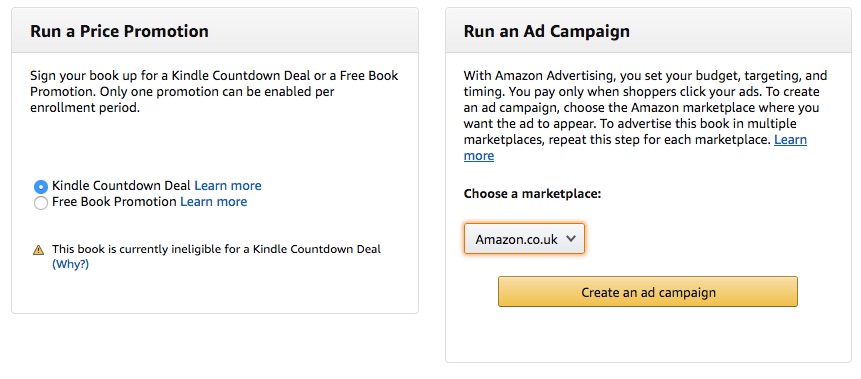
This takes me away from the the KDP website, and directs me to advertising.amazon.co.uk (or the Amazon advertising site for whichever country you’ve chosen).
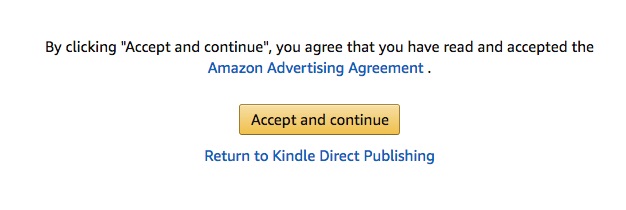
I’m asked to agree that I’ve read and accepted the Amazon Advertising Agreement. I bet the percentage of advertisers who actually read it approximates to zero.
Next, I choose between Sponsored Product and Lockscreen Ads. It’s a choice between ads that appear on the Amazon website, and ads on readers’ Kindle devices.
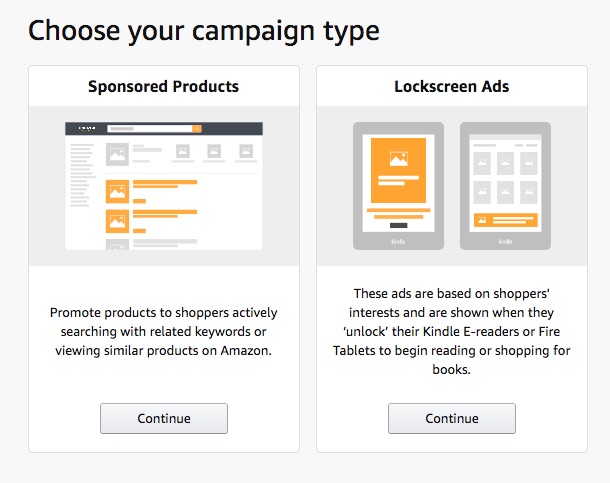
The image above is from a campaign on Amazon.com. On Amazon.co.uk, only Sponsored Products were available to me.
If it’s the first campaign you’ve run on the particular country’s Amazon site, you won’t be able to proceed until you’ve added payment details. If that’s the case for you, click on ‘Update your payment settings’.
After adding a debit or credit card to pay for your advertising you can use the menu in the left sidebar to return to Campaigns, and you’re presented with a ‘Create campaign’ screen.
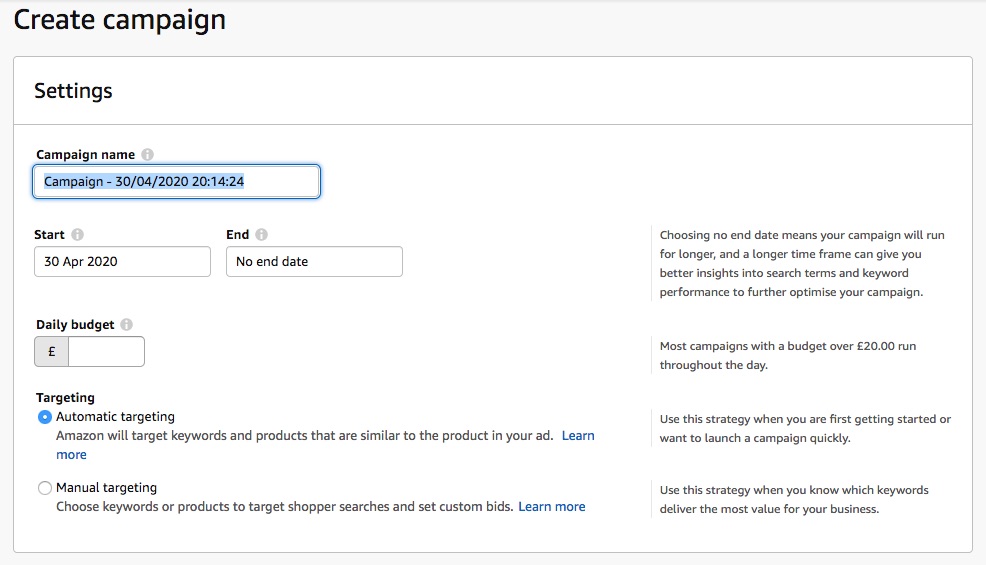
I’ll give my campaign a more meaningful name than the one Amazon suggests. I’ll call it HowTo 30th April – then I know when I started it.
I can see why it might be convenient for Amazon if I keep paying them for advertising every day with no end date, but I’m not made of money. I’ll choose to run the campaign until 10th May 2020.
(When I click to change the date, the initial setting of the calendar is October!!! I mean, Amazon has most of the world’s money already. Surely all this is unnecessary).
I add a daily budget of £5, which is a figure I’ve seen mentioned by others. Amazon want me to spend £20 a day, according to the notes on the right of the page.
The Amazon advice on automatic targeting is, ‘Use this strategy when you are first getting started or want to launch a campaign quickly.’ I’ll give it a go and see what happens, then try manual targeting later.
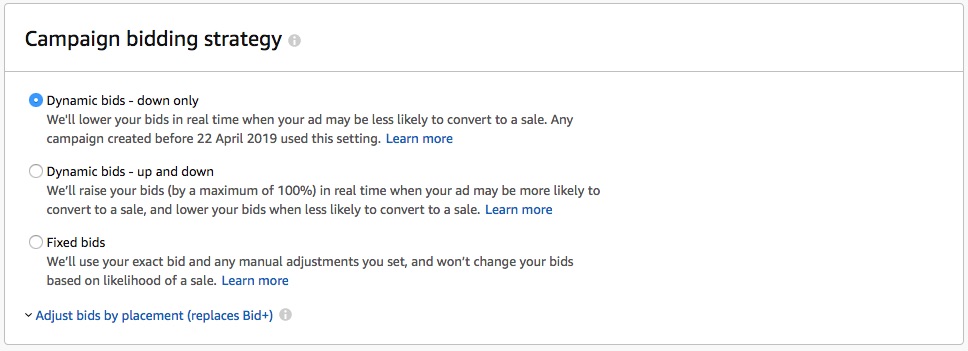
On the ‘Campaign bidding strategy’ I’m also happy to try the default setting of ‘Dynamic bids – down only’.
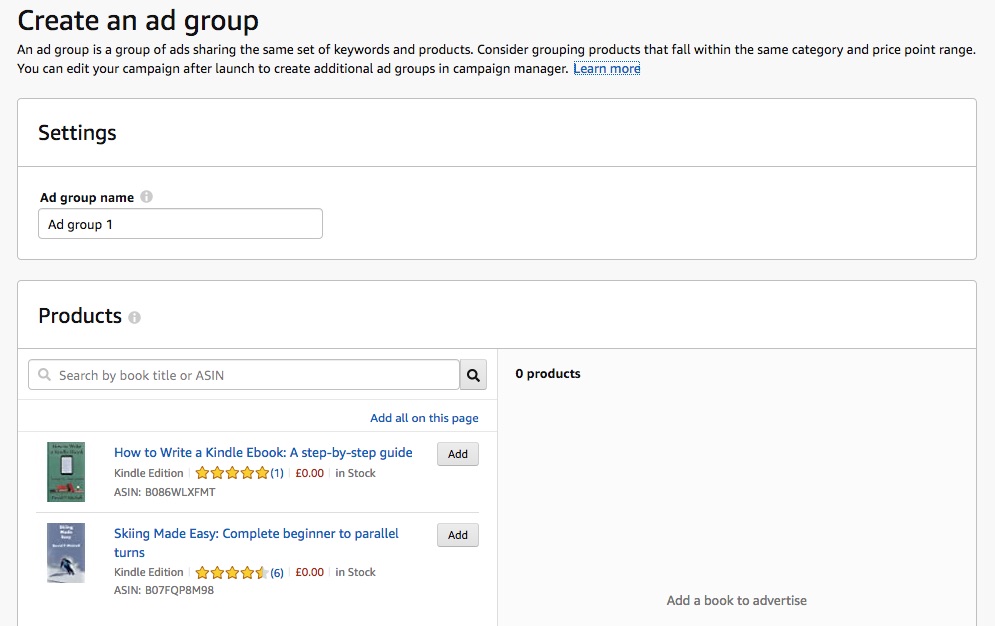
Next I’m asked to ‘Create an ad group’ of products in the same category and price point range. In fact, I simply want to advertise How to Write a Kindle Ebook, so I’ll add that and nothing else to the ad group.
Then I have to choose a default bid. The box is pre-populated with £0.50, but the suggested bid is £1.32.
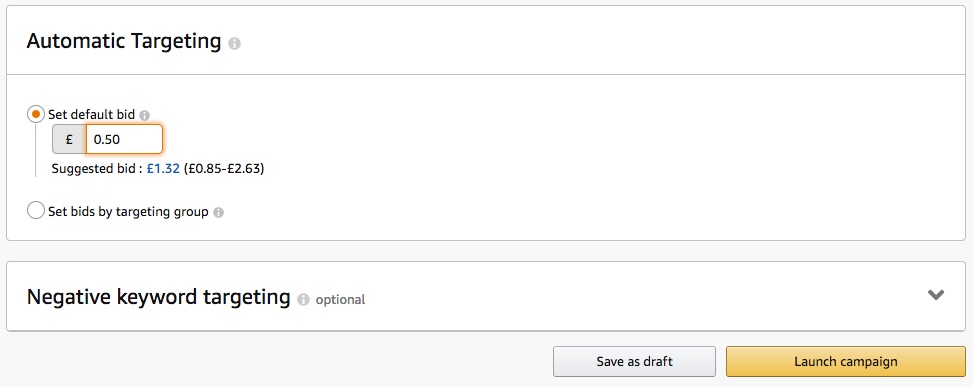
I’ll accept the suggestion on this occasion, and see how it works out. As my book’s price is £2.99 and I only get 70% Royalties, I’ll need more than half the clicks to result in sales if I’m to make any money out of this.
After clicking on ‘Launch campaign’, I’m told that my campaign is being moderated, and this may take up to 72h. I get a summary of the choices I’ve made.
That’s it set up. I’ll report back on how I get on.
Pingback:Set up an Amazon Ad Campaign for your Kindle ebook – 2 – How to Write a Kindle Ebook